, ,

Buying an used SSD?

Buying an used SSD?

Buying an used SSD?

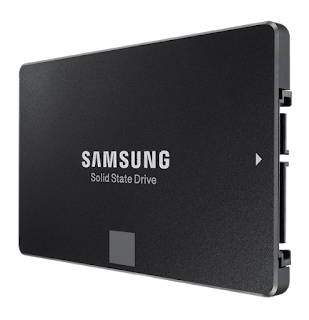
Can we buy an used SSD hard disk that is selling for a bargain? Think twice. While installing an SSD hard disk as the OS drive in your laptop is the best upgrade you can make in terms of the speed up and the saving of time, but in this case buying an used SSD is not a good idea.


There are several reasons why I will not suggest buying a used second-hand Solid State Drive:

1 – Limited Write count. SSDs can only be written to a limited number of times, and every write, uses up a portion of an SSD’s life unlike traditional spinning hard drives,. And since you can never know how many times a used drive has already been written to and what is its write count - before buying it -  you have no way of knowing how much life is still left in it

2- Dead cells count: Even though a used SSD might be working fine, it could contain non-working memory cells – a condition that tends to deteriorate once an SSD starts to fail in this aspect.

3 – New SSDs are affordable. While I accept that SSD’s are more expensive per Gigabyte of storage space than hard drives cost-wise, their prices have reduced greatly, of late. Decent sized SSDs are quite affordable these days and add the amount of time you would be saving!

4- Veracity - No one knows if the used SSD is second-hand or third-hand or even worse. After all the age of the SSD is not an indicator of its health. So better be safe than sorry.


In fact, you can pick up an awesome Samsung 850 EVO 500GB 2.5-Inch SATA III Internal SSD for less than $200 on Amazon. The cost extra will certainly pay for itself in the long run.


Bottom-line: I feel that it is a much better deal buying a new one than paying for a used drive that might not last very long especially if it is the primary drive in your main laptop or computer.


Note: The links in this post are affiliate links. Amazon prices are subject to change.

,

Clean out and speed up Windows with CCleaner

Clean out and speed up Windows with CCleaner


How to make your slow computer/laptop run faster
Does your PC run like a snail? How to make your slow computer/laptop run faster? It is simple. Clean out and speed up your Windows PC with CCleaner - a free program that helps me complete my daily tasks and keep my PC and laptop running quick and jitter-free. It is one of my absolute favorites from Piriform, an excellent company that produces a number of useful programs out there, free and paid.

In case you have not heard about it, CCleaner is akin to a maid for the system files and OS (Operating system) of your Windows PC and laptop or Macintosh, keeping it clutter-free and clean from temporary files, recent documents, cookies, obsolete data knowledge, cached' history…

In other words almost any “leftovers” that tend to make up and clutter your disc drive and bog down your system, sometimes to a grinding halt.

It will also clean up your registry of unwanted references and what I liked about it is that you are prompted to take a backup of your registry files just in case something goes wrong in future.

It is the top most programs that I install whenever I need to increase the speed of my system.

The speed of a computer will gradually reduce due to the silent junk that starts building up and in turn will reduce the space available for your important files. 

It will also result in unwanted delays due to obsolete paths and file-pointers that do not exist now but were created by you long ago. these leftovers stay in the registry and will increase the time it takes in performing simple tasks.

What does CCleaner do?

Safer Browsing - CCleaner erases your browser search history and cookies so any internet browsing you do stays confidential and your identity remains anonymous from trackers.

Clean registry - CCleaner’s registry cleaner clears out this clutter to make your PC
stable and efficient. Why is this important? Registry is the storehouse of your PC's functional codes. Like the DNA of your cells. Over some time it will accumulate waste and redundant data that is no longer needed. Usually when you uninstall any program the registry should also be theoretically cleaned but it does not happen that way. this results in obsolete references and paths that will bring your computer to a slowdown. So it is a good tool to speed up your registry.

Faster start-up of the OS -  CCleaner helps you get to work, or play faster by letting you disable unneeded programs.

And a lot more depending on which version you are going to use.


This screenshot gives an example of some of the items removed by a recent scan of my PC:

How to make your slow computer/laptop run faster


I use CCleaner at least once a fortnight and I strongly advise you to do the same. You can learn more about this great program and download it for free at www.piriform.com/ccleaner.


,

Sunrise - App that helps in time management

Sunrise - An app that helps in time management.

Sunrise


A calendar designed for professionals, students, families, and groups. A calendar designed for  your daily reminders and schedule.

I know you need this as much as I do.


Especially with today's hectic lifestyle throwing up diversions every minute. Meet Sunrise - The app that transcends all platform barriers.

Sunrise is a cross platform app that is connected to your online calendar accounts. Creating an account takes just a minute. You can use your Google or Facebook account to create one.

The advantage with this is that your Google or Facebook calendar will be automatically imported into your sunrise account.

You also have the option to add calendars from iCloud, Google, or Exchange calendars to the app.

All social elements (birthdays, contacts, etc.) are imported into the app as well.

Sunrise
Sunrise has a minimalistic look.

The main view shows you a list of upcoming events in the next week

Your events are categorized, paying attention to the keywords you use to give each event a suitable icon.

For instance, the word "class" gets you an cap icon, while "gym" or "Tai Chi" shows a dumbbell.

It's a small gesture to keep you organized with visual aids.

PLUS: The clean design is appealing and clutter-free, and it includes several different views for checking your schedule.

Minus: None

_____________________________________________________________________

Get it here and let me know if you liked it and helped you in any way.

, ,

How to make your sluggish computer run a lot faster

How to make your slow computer run a lot faster

How to make your slow computer run a lot faster
Do you ever rake up your brains wondering how to make your sluggish computer run a lot faster
? Have you noticed that, of late it is running a lot slower than it did when you first started using it? Computers tend to slow down over time due to clutter on the hard drive and other software-related issues. This is especially true with Windows-based machines.

And of course older computers that you  bought a few years ago, simply don’t have the state-of-the-art faster hardware components that newer models are blessed with.


So how to make your sluggish computer run a lot faster? There are three possibilities:
  1. You will have to exchange it at a lower price than you would have wished it or 
  2. Tweaked a few software settings and made it more efficient.
  3.  Added a few hardware components to suit the latest OS.
The first option can be avoided if your computer is not too old.
The second one is possible and that too without spending too much.
The third one only if your OS demands it.

Here are the software tweaks:

  1. Install a good AV (Anti-Virus) software that will not slow down your computer at the same time.
  2. Next, use a cute little free utility called 'Autoruns'* to remove any non-essential programs and utilities from the Windows Startup process.
  3. Use the amazing and free Windows tuning utility CCleaner to clean up your system’s obsolete and temp files and eliminate errors in the Windows Registry.
  4. Finally update your windows OS and install the latest updates without fail. In Windows 7 and Windows Vista you’ll find the Windows Update utility on the Start Menu. In Windows 8 or 8.1, simply search for Windows Update in your start menu search box.

In case you do not have the search box you can use this trick to install one, in Windows 8 (or 8.1)

Coming to adding some necessary hardware components -

The first most important tip is to add up more RAM. 

If your computer has good RAM volume then it will be more efficient than a lesser RAM configuration PC. So to find out if your RAM is lesser or not head over to Crucial Website and download their free Crucial System Scanner diagnostic tool.

The Crucial System Scanner utility will take stock of your PC’s RAM configuration and will give insights on how much RAM is already installed, what type of RAM it uses, and exactly which RAM modules you need to buy (and how many to say increase the total system RAM to either 4 GB or 8 GB).

Write down the information and buy your new RAM elsewhere.

The second important tip is to use a SSD. Now, lets talk about a steroid shot that will truly press the nitro on your PC! Simply replace your computer’s existing hard drive with a relatively inexpensive solid state drive (SSD).

It will make a huge difference in how quickly your computer boots up, shuts down, and runs programs. While it performs the same function as a regular hard drive, an SSD stores your OS programs and files on super-fast memory chips instead of the much slower spinning platters of a regular hard disk.

And trust me, the difference in speed and performance is amazing sometimes by a margin of almost 50% !!!

But a word of caution - this will require you to hire a professional help as it may be a bit technical. However I will post the steps in a later article and try to make this easy for you.

______________________________________

* Here are the steps for downloading and running Autoruns:

1 – Visit the CNET download page for Autoruns and click the “Download Now” button. Click “Save As” in the box that pops up at the bottom of the screen and save the folder Autoruns.zip onto the Desktop.
2 – Open the Autoruns.zip folder and click “Extract all files”.
3 – To run Autoruns simply click on autoruns.exe.
______________________________________
, ,

Why Xiaomi Mi 4i lacks memory card slot

:::: Also known as MicroSD card slot ::::


MI 4i


Hugo Barra, vice president for international at Xiaomi, explains Why Xiaomi Mi 4i lacks memory card slot. For those of you who are ordering it online in a few minutes this may come as a surprise (I too was) as to why this phone did not come up with  a micro-sd slot.  Now it is clear after hearing what Xiaomi has to say about this.

  • MicroSD card requires a large motherboard and a significant redesign of the device that would make it look bigger and less slimmer.
  • A microSD card slot in the Mi 4i, meant a smaller (lesser than 3000mAh battery) in it. 
  • SD cards can significantly slow down system performance and lead to apps crashing due to the poor quality of SD cards in the market, many of which are actually fake.
 ***********************************************************

These are valid reasons according to many people. Also, these are the same reasons why most of the high-end phones nowadays don't come with a microSD card slot.


However I personally find this as a big point to consider as I am yet to come to terms with a non microSD Phone. However its a personal choice and also there is always solace in the fact that this phone has OTG support for the OTG pendrives. So I may go for this one, for the sheer specs at this price.

Note: The links in this page are affiliate links.
, ,

How to disable access to the Control Panel in Windows 8

Dear Geek - Is there a way to disable access to the Control Panel in Windows 8? I ask this because I do not want my guest's kids tampering or fiddling with my computer's settings and I cannot give them guest user access since that would mean I would have to re-install some big software program all over again. Thanks in advance.

Nithish Rane, Aurangabad.
________________________________________________________________________


Dear Nithish - Yes. The answer to your question is positive and there is a way to do it. Just follow these steps and you are good to go.
  • Press the Windows+R key combination to open the “Run” box or click on the Run command in the start menu (if you have it enabled).
  • Type gpedit.msc in the Run box, and press the Enter key. This will open a Group Policy editor window.
  • Go to User Configuration>Administrative Templates>Control Panel.
  • Double-click on - Prohibit access to Control Panel and PC settings. A dialog box will open up on your screen.
  • Select Enabled, and click the OK button.
________________________________________________________________________

That is it. Whenever someone tries to access the Control panel they will get the message that access has been disabled.

Disable Control Panel
Whenever someone tries to access the Control panel they will get the message that access has been disabled.

, , ,

MI4i - Budget friendly warhorse of a smartphone!

MI4i - Budget friendly warhorse of a smartphone. The phone that delivers value for money. If you are looking for an affordable phone with high-end specs then you need to stop looking any further.

First thing it is a very affordable for the specs that it is powered with. In fact more than a bang for the moolah. It comes with awesome features that usually are reserved for the 20+K segment.


Coincidentally I was about to order a high-end phone but thought to wait for a day to check in just in case. And I was pleasantly surprised to see this coming out!

I will be adding more details later in the days to come. Lets see some cool pics first:

MI4i


Resolution = Full HD, 1920 x 1080 Pixels 'JDI Display', All New Sunlight Display, 441 PPI Size = 5 Inches
MI4i


RAM Memory  =   2 GB RAM,
Device Memory =  16 GB ROM  (User available Memory - 12.77 GB)
User Interface = MIUI 6
Graphics   =  Adreno 405
OS  =   Android v5.0.2 (Lollipop)
Processor   =  1.7 GHz + 2nd-gen Snapdragon 615 64-bit Octa core


Register at Flipkart for your phone and get set to go!

Note: the links in this post are affiliate links.
, ,

Mi 4i - Drooling stuff for the Mobile lover.

MI4iMi 4i - Drooling stuff for the Mobile lover. The phone that I have been waiting for a long time. I must say that I am a bit lucky in this regard. When MI4 launched I missed the bus. When Redmi 1s launched I missed the bus.

When MI4i launched today I made sure that I clicked the register button. Why?

First thing it is a very affordable for the specs that it is powered with. In fact more than a bang for the buck. The thing that I liked the most was the fact that it comes with dual 4G Sims. And it has notched the quality bar to stay ahead of its rivals for each aspect of the device.

I am happy that I waited for this as it was just this afternoon that I had come almost to the verge of clicking another phone at same price but lower specs.

Lets see some cool pics first:
MI4i


RAM Memory  =   2 GB RAM,
Device Memory =  16 GB ROM  (User available Memory - 12.77 GB)
User Interface = MIUI 6
Graphics = Adreno 405
OS  = Android v5.0.2 (Lollipop)
Processor = 1.7 GHz+ 2nd-gen Snapdragon 615 64-bit Octa core
Resolution = Full HD, 1920 x 1080 Pixels 'JDI Display', All New Sunlight Display, 441 PPI Size =  5 Inches


Register at Flipkart for your phone and get set to go!


Note: the links in this post are affiliate links.
, ,

Why you must calibrate the colors on your computer monitor

Why you must calibrate the colors on your computer monitor.

Do your photos look different on your computer monitor than they appeared on your camera’s LCD display or when they are seen in another computer/laptop? 

If so, its time to calibrate the colors on your monitor.And not only now but once in 4-6 months.


How to calibrate your monitor’s display?

Follow these steps if your PC is running Windows 7:

1 – Go to the Start button.

2 – Click Control Panel.

3 – Go to Hardware and sound.

4 – Click Display.

5 – Click Calibrate color and follow the instructions on the screens that follow.


Follow these steps if your PC is running Windows 8/8.1:

1 – Click on search panel of the Start Screen, then type 'calibrate'.

2 – Select 'Calibrate display color' from the list of search results.

3 – Follow the instructions on screen, that follow.

Calibrating your monitor every few months is a good idea. Electronic products tend to get affected by heat and therefore these settings need to be re-calibrated often.
, , ,

Fing - Find out who is connected to your Wi-Fi network

Fing - Find out who is connected to your Wi-Fi network. That too n the blink of an eye using 'Fing'. It is a wonderful android and iPhone App for analyzing your Wi-Fi network. 


Fing - Find out who is connected to your Wi-Fi network

A simple and intuitive GUI (Graphic User Interface) that helps you judge your security levels, detect unknown intruders and also resolve network issues.  

And most importantly it is free!

For me personally I am drooling over this nifty feature which states - Wake On LAN: Switch on your devices from your mobile or tablet! 

Upon installing and first run, almost immediately you’ll be presented with a list of all those devices that are connected to your network at that time.

The Fing app will display the name of the network as well as the IP and MAC address of every device that’s currently connected to it. See the screen shot.


Fing is available on several other platforms, including Windows, OS X and Linux and Available for iPhone, iPad and iPod Touch with retina and standard displays.Check them out!

There’s a whole lot of useful info that can be seen in Fing as well.

You’ll find the free Fing Network Tools app in the Google Play Store.